

AI tag remover tools remove hidden metadata from images before you share them online. Our free tool, aitagremover.org, cleans supported image metadata directly in your browser. You can use it with JPG, PNG, and WebP files without installing software.
If Instagram shows “AI content” under your account name, you may wonder what triggered it. This tutorial explains how to clean your image files, what our tool removes, and how AI labels differ from watermarks.
Quick answer: Choose your image on aitagremover.org, review the cleanup report, and download the cleaned copy. This removes supported file metadata. However, it does not erase watermarks in image pixels or guarantee that a social platform will remove an AI label.
How to Use Our Free AI Tag Remover
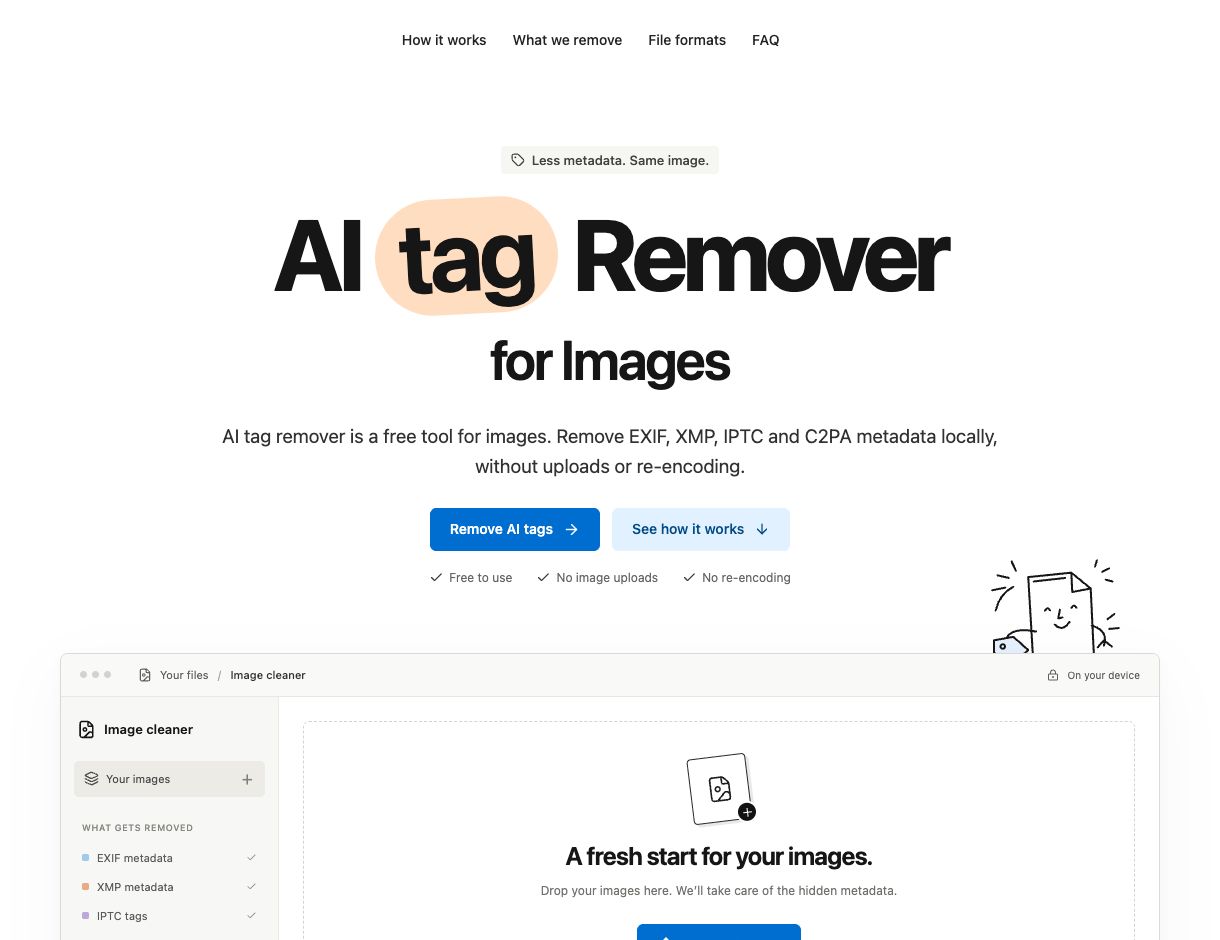
1. Open the Image Metadata Cleaner
First, visit aitagremover.org’s image cleaner. You do not need an account or a paid plan. Keep your original image so you can compare it with the downloaded copy.
You can also click Try a sample to see the process before choosing your own file. During our check on November 10, 2026, the sample finished successfully. Its report showed three removed blocks: EXIF, XMP, and IPTC.
2. Choose Your Images
Next, click Choose images or drop files into the image cleaner. Select the image file you want to share, rather than a screenshot of an existing social post.
The tool currently accepts up to 10 images per batch. Each image can be up to 50 MB and 100 megapixels, with a 200 MB total batch limit. It supports JPEG, PNG, and WebP. HEIC, AVIF, TIFF, GIF, and video files are not supported.
3. Review the AI Tag Remover Report
After you select a supported file, the cleaner processes it automatically. Open View removal report beside the result to see the metadata containers it removed.
The tool then scans the output again. A result with no supported metadata containers remaining confirms that cleanup check. It does not prove the image has no hidden pixel watermark, and it is not an AI detection score.
4. Download and Check the Cleaned Copy
Finally, click Download beside the image. Open the saved copy and check its orientation, colors, transparency, and dimensions before sharing it.
The cleaner keeps the original format and encoded image data. In other words, it does not recompress the picture. However, removing EXIF can remove rotation instructions, so an image that relies on them may display differently.
What Does an AI Tag Remover Actually Remove?
An image contains picture data and may also contain metadata. Metadata can describe the camera, location, editing software, or creation history. Some files also carry information about AI generation.
Our tool removes supported metadata containers from the file bytes. These include EXIF, XMP, IPTC, and embedded C2PA Content Credentials. It also removes non-AI information stored in those containers, such as captions or camera details.
| Type of information | What it means | Does the tool remove it? |
|---|---|---|
| Supported image metadata | File records such as editing history, camera data, and embedded Content Credentials | Yes, for supported containers and formats |
| Instagram or TikTok AI label | A notice displayed by the platform around your post | It cannot directly change the platform’s label |
| Visible watermark | A logo or text drawn into the picture | No |
| Invisible pixel watermark | A signal encoded in the image itself | No |
This distinction matters when searching for an “AI watermark remover.” A metadata cleaner handles information attached to an image. It does not edit a logo out of the picture. For that separate topic, see our guide to visible Gemini watermarks.
Instagram Examples: With and Without an AI Tag
The two examples below show different AI-generated images supplied for this tutorial. One screenshot displays an AI notice; the other has no visible AI notice in the captured view.


In the first example, the notice sits outside the artwork, beneath the username. That makes it a platform label rather than a watermark drawn into the image. In the second example, that notice is not visible.
However, these are separate posts, not a controlled before-and-after test of our tool. The screenshots do not establish why Instagram labeled one image differently. They also do not prove that metadata removal caused the difference.
As a result, the absence of a label does not prove that a picture came from a camera. For more ways to assess an image, read our guide on how to detect AI photos.
Why Image Metadata Matters on Instagram and TikTok
For creators and businesses, metadata affects more than file organization. It may expose details you do not want to share, such as a location or editing history. It can also provide signals that a platform uses to understand an image’s origin.
For example, Meta’s explanation of AI labels describes using industry signals and creators’ disclosures. Meta also distinguishes AI-generated content from content that AI tools only edited. Its published guidance discusses moving information about some AI edits into the post menu.
Meanwhile, TikTok’s AI-generated content guidance requires labels for realistic AI-generated images, audio, and video. TikTok can apply automatic labels, including when content carries C2PA Content Credentials. Its help page says creators cannot remove an automatic AI label from a post.
TikTok has also described detection models and tests of invisible watermarking. Therefore, file metadata is only one possible signal. An AI tag remover cannot control every method a platform uses.
Metadata cleanup is useful for managing the files you share. Still, keep any AI disclosure the platform requires. Removing metadata does not turn generated artwork into an authentic photograph or change an already published post.
When Is an AI Tag Remover Useful?
Use a metadata cleaner when you want to prepare a separate sharing copy of your image. For instance, you may want to remove camera details, unnecessary text fields, or location data from supported metadata blocks.
Our tool also suits a simple batch workflow: choose several files, review each result, and download the copies you need. According to its processing description, the work happens locally in your browser without uploading the images to a server.
Keep the originals if you need credits, captions, or creation records later. Unknown private metadata and external provenance records can remain outside the cleaner’s supported checks.
Also, removing metadata may reduce file size slightly, but it is not a substitute for image compression. If size is your main concern, follow our guide on how to reduce image file size.
AI Tag Remover FAQ
Is aitagremover.org Free?
Yes. The image cleaner is currently free and does not require an account. You can process supported images individually or in batches within the stated limits.
Can an AI Tag Remover Delete an Existing Instagram Label?
No. The tool works on a local image file, not your Instagram account or published post. If you believe a platform label is incorrect, check the options and help available within that platform.
Will the Image Lose Quality?
The cleaner preserves encoded image data without recompression. However, EXIF orientation instructions do not survive cleanup. Check the downloaded image before using it, especially if the original relies on rotation metadata.
Does Removing Metadata Make an Image Undetectable as AI?
No. Pixel patterns, watermarks, source records, and platform signals can remain. A clean metadata report only describes the supported containers checked in that file.
Conclusion
An AI tag remover offers a quick way to clean supported metadata from images before sharing them. With our free image metadata cleaner, you can choose a file, review the report, and download a copy in the same format.
Keep your original, check the result, and treat social media labeling as a separate step. Our Instagram examples show how labels can look different. They do not establish that a cleaned file will always appear without an AI notice.

Ludjon, who co-founded Codeless, possesses a deep passion for technology and the web. With over a decade of experience in constructing websites and developing widely-used WordPress themes, Ludjon has established himself as an accomplished expert in the field.





Comments