

Dashlane to Bitwarden migration is a common move for users who want an open-source password manager, a strong free plan, lower pricing, or more control over their vault.
The good news is that you can move your passwords manually with an export file, or use a tool like MovePasswords.com to make the process easier.
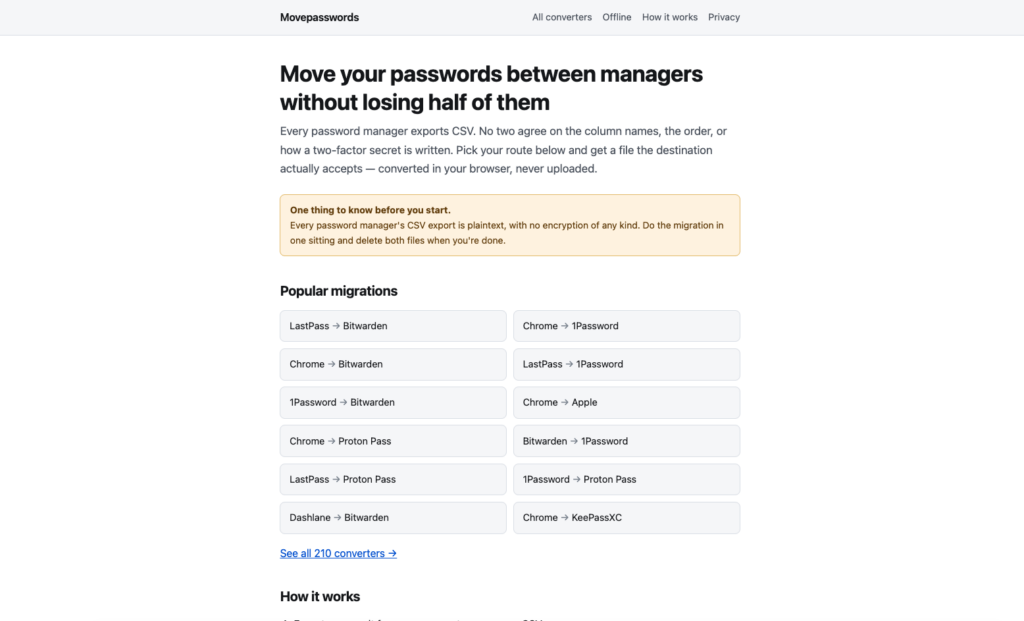
In this tutorial, we will show how to export your Dashlane data, import it into Bitwarden, check for missing items, and delete sensitive files after the migration. We will also explain when the manual method is enough and when MovePasswords.com can help clean or prepare the file.
If you are still comparing password managers, you can also read our guides on best password managers, and Bitwarden vs 1Password. For official migration details, use the Dashlane and Bitwarden support pages linked below.
Dashlane to Bitwarden: Quick Overview
| Step | What You Do | Important Note |
|---|---|---|
| 1 | Export your Dashlane vault | Dashlane exports CSV files inside a ZIP file |
| 2 | Import into Bitwarden | Choose Dashlane CSV or Dashlane JSON if available |
| 3 | Review your vault | Check logins, secure notes, payment items, and duplicates |
| 4 | Delete export files | CSV files are not encrypted and should not be kept |
| 5 | Turn on security | Enable two-factor authentication in Bitwarden |
Why Move from Dashlane to Bitwarden?
Bitwarden is popular because it is open source, affordable, and available across browsers, desktop apps, and mobile devices. It also has a strong free plan, which makes it attractive for personal users.
Dashlane is still a polished password manager with useful security tools. However, some users prefer Bitwarden because it offers more flexibility, self-hosting options, lower-cost family plans, and transparent documentation.
Method 1: Move Dashlane to Bitwarden Manually
The manual method is the official path for many users. You export data from Dashlane, then import it into Bitwarden using Bitwarden’s import tool.
Dashlane currently lets users export CSV files from its apps. According to Dashlane, the export downloads as a ZIP file that can include separate CSV files for credentials, IDs, payment information, personal information, and secure notes.
Step 1: Export Your Dashlane Data
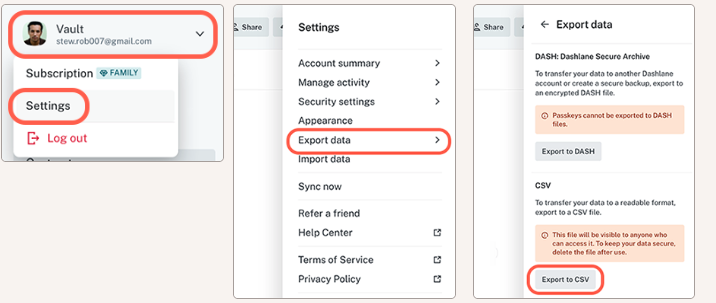
- Open the Dashlane web app or desktop app.
- Unlock your account with your master password, biometrics, or PIN.
- Open the vault or settings menu.
- Choose the option to export data.
- Select CSV export.
- Download the ZIP file to your computer.
- Open the ZIP file and locate the credentials CSV file.
Official reference: Dashlane guide to export data to CSV.
Step 2: Import Dashlane Data into Bitwarden
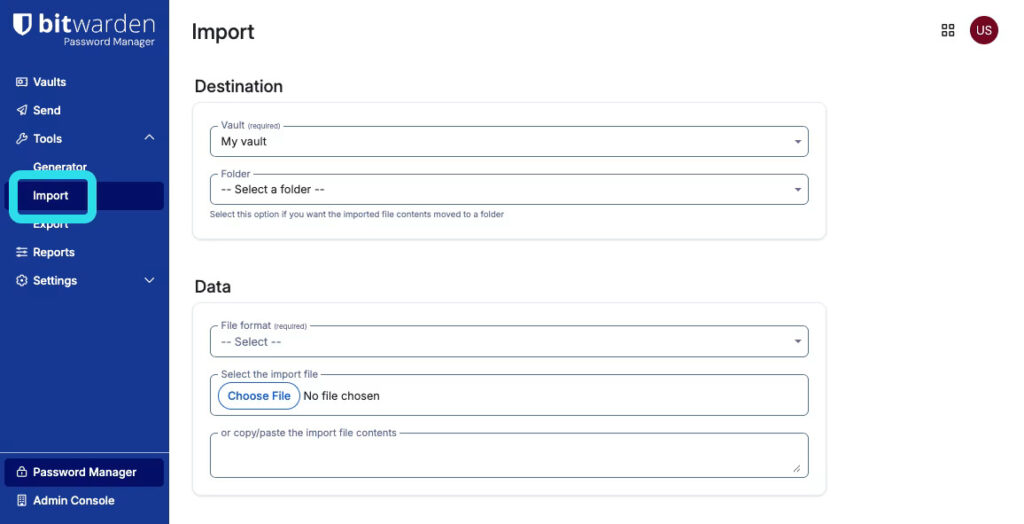
- Open Bitwarden and log in to your account.
- Go to Tools or Import data.
- Select the destination vault.
- Choose Dashlane CSV as the import format.
- Upload the Dashlane credentials CSV file.
- Start the import.
- Review your Bitwarden vault after the import finishes.
Bitwarden supports Dashlane CSV and Dashlane JSON import formats. If your first import fails, check that you selected the correct Dashlane file and not the full ZIP archive.
Official reference: Bitwarden import data guide.
Method 2: Use MovePasswords.com
If the manual method feels confusing, you can use MovePasswords.com to make the Dashlane to Bitwarden process easier. It is useful when your export file needs cleanup before importing into Bitwarden.
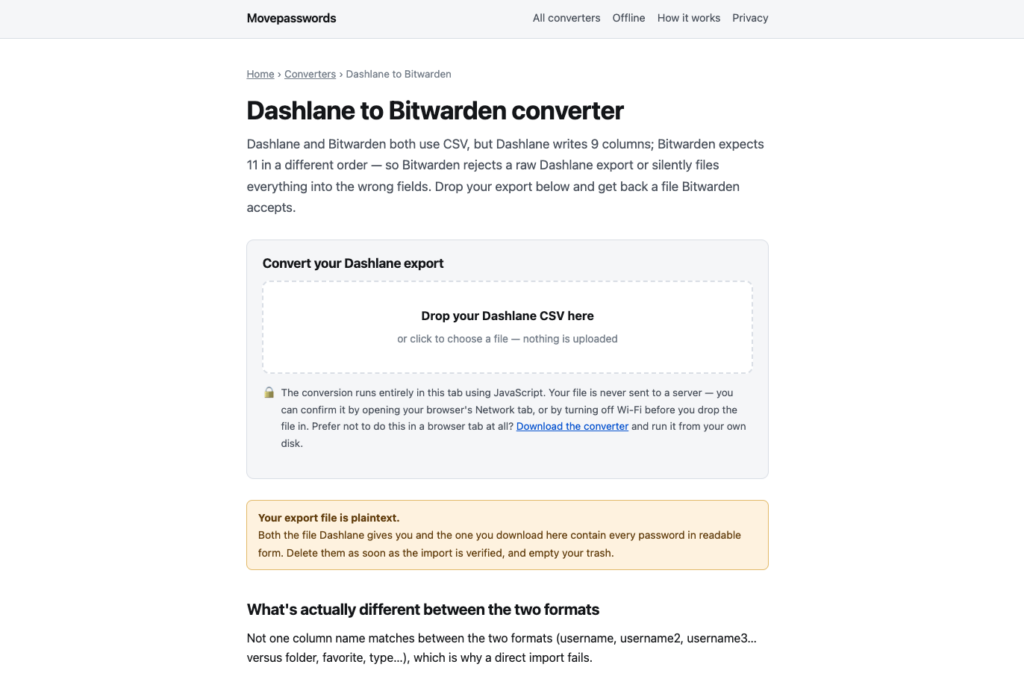
MovePasswords.com can help users prepare password manager export files without manually editing CSV columns. This is helpful when fields do not match, when an import fails, or when you want a cleaner file for the destination app.
- Export your Dashlane data as CSV.
- Open MovePasswords.com.
- Use the tool to prepare the file for Bitwarden.
- Download the converted or cleaned file.
- Import the prepared file into Bitwarden.
- Review your imported items.
- Delete all export and converted files.
Because password files are sensitive, always review how any migration tool handles your data. Use it only if you trust the workflow and understand where your file is processed.
Common Dashlane to Bitwarden Problems
Bitwarden Does Not Import the ZIP File
Dashlane may download a ZIP file that contains multiple CSV files. If Bitwarden does not accept the ZIP, extract it first and import the credentials CSV file.
Some Items Are Missing
Not every password manager stores fields in the same way. Secure notes, IDs, payment cards, passkeys, or custom fields may need extra review after migration.
Duplicates Appear in Bitwarden
If you import the same file more than once, Bitwarden may create duplicate items. Remove duplicates manually or purge the vault before repeating an import.
Security Checklist After Moving to Bitwarden
- Delete the Dashlane ZIP export file.
- Delete all Dashlane CSV files.
- Empty the trash or recycle bin.
- Check your most important logins manually.
- Turn on two-factor authentication in Bitwarden.
- Install the official Bitwarden browser extension.
- Disable Dashlane autofill after the migration is confirmed.
- Change weak, reused, or old passwords.
Conclusion
Moving from Dashlane to Bitwarden is straightforward if you export the right Dashlane CSV file and import it with the correct Bitwarden format. The most important part is handling the exported files securely because CSV files are not encrypted.
The manual method is best if you want to follow the official Dashlane and Bitwarden process. If the CSV file needs cleanup or the import feels too technical, MovePasswords.com can make the migration easier.

As one of the co-founders of Codeless, I bring to the table expertise in developing WordPress and web applications, as well as a track record of effectively managing hosting and servers. My passion for acquiring knowledge and my enthusiasm for constructing and testing novel technologies drive me to constantly innovate and improve.
Expertise:
Web Development,
Web Design,
Linux System Administration,
SEO
Experience:
15 years of experience in Web Development by developing and designing some of the most popular WordPress Themes like Specular, Tower, and Folie.
Education:
I have a degree in Engineering Physics and MSC in Material Science and Opto Electronics.




Comments