

Want to show your silent auction items and live bids on a TV or projector at your event?
This guide covers everything: the best software options, hardware setup, and pro tips from event planners who've done it.
Why Display Auction Bids on a TV?
A live bid display board transforms your silent auction:
- Creates excitement — Bidders see competition in real-time
- Drives higher bids — FOMO kicks in when people see items closing
- Reduces questions — No more “what's the current bid on item #7?”
- Looks professional — Elevates your event's production value
- Saves volunteer time — No manual bid sheet monitoring
Schools, churches, and nonprofits running silent auctions can raise 15-30% more with a visible bid display.
The Easy Way: FreeAuctionSite
Website: freeauctionsite.com
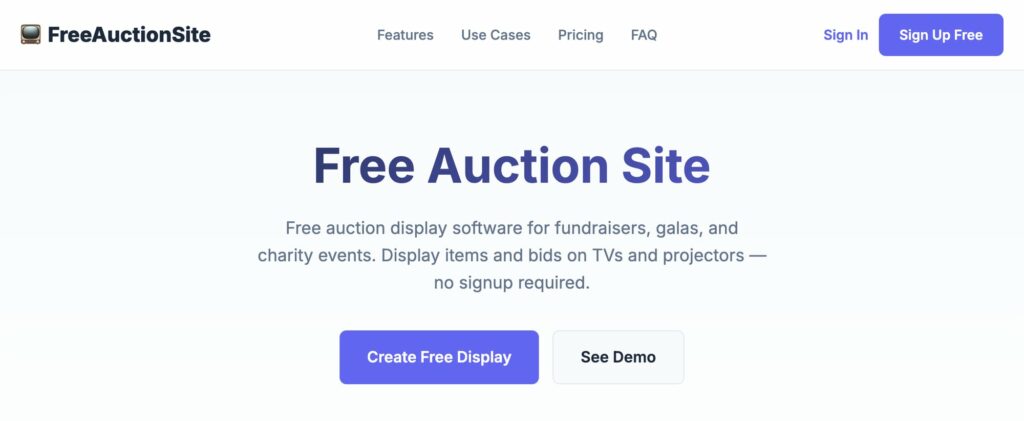
FreeAuctionSite is built specifically for displaying auction bids on TVs and projectors. No complex setup, no app downloads.
How it works:
- Add your auction items online
- Open the display URL on your TV/projector
- Bidders scan a QR code to bid from their phones
- Bids update on the display in real-time
Pricing:
- Free: Up to 10 items (small watermark)
- Pro: $29/event for 50 items
- Event: $79/event for unlimited items
Why it's the best option:
- Takes 5 minutes to set up
- Works on any TV with a browser (Smart TV, Chromecast, Fire Stick, laptop + HDMI)
- No bidder registration required
- Clean, professional display board
Read more: 5 Best Free Auction Software 2026 (Ranked)
Hardware Setup Options
Option 1: Smart TV (Easiest)
Most modern smart TVs have a built-in web browser.
Setup:
- Connect TV to WiFi
- Open the browser app
- Go to your auction display URL
- Set to full-screen mode
Works with: Samsung, LG, Sony, Vizio smart TVs
Tip: Use the TV remote to bookmark the URL for quick access.
Option 2: Laptop + HDMI Cable (Most Reliable)
The tried-and-true method that works every time.
Setup:
- Connect laptop to TV via HDMI
- Open Chrome/Firefox/Safari
- Go to your auction display URL
- Press F11 for full-screen
- Set laptop to “Do not sleep”
Why this works best:
- Full control over the display
- Can troubleshoot on the spot
- Works with any TV (even old ones)
What you need:
- Laptop with HDMI output
- HDMI cable (or USB-C to HDMI adapter)
Option 3: Chromecast or Fire Stick
Stream from your phone or laptop to the TV.
Chromecast setup:
- Plug Chromecast into TV
- Open Chrome on your laptop
- Click three dots → “Cast”
- Select your Chromecast
- Cast the auction display tab
Fire Stick setup:
- Open Silk Browser on Fire Stick
- Navigate to your auction URL
- Set to full screen
Option 4: Projector
Same as laptop + HDMI, but with a projector instead of TV.
Tips for projectors:
- Use a matte screen or white wall
- Position projector to avoid shadows
- Test ambient lighting beforehand
- Bring a backup bulb for long events
Step-by-Step Setup (Using FreeAuctionSite)
Step 1: Create Your Auction (5 minutes)
- Go to freeauctionsite.com
- Click “Create Auction”
- Add your auction items:
- Item name
- Starting bid
- Item photo (optional)
- Description (optional)
- Save your auction
Step 2: Set Up the Display
- Copy your auction's display URL
- On your TV/projector setup, open a web browser
- Paste the display URL
- Set to full-screen (F11 on laptop)
Step 3: Print the QR Code
FreeAuctionSite generates a QR code for bidders.
- Print the QR code poster
- Place at your registration table
- Add QR codes to each auction item table (optional)
Step 4: Test Before the Event
Always test your setup:
- Make a test bid from your phone
- Confirm it appears on the TV
- Check WiFi strength at the display location
- Have a backup plan (paper bid sheets)
Alternative Software Options
For Mobile Bidding + TV Display
| Software | TV Display | Price | Notes |
|---|---|---|---|
| FreeAuctionSite | ✅ Built-in | Free-$79 | Best for display-focused auctions |
| OneCause | ✅ | $$$$ | Enterprise pricing |
| Greater Giving | ✅ | $$$ | Full event management |
| Handbid | ✅ | $$ | Good mobile bidding |
For DIY Solutions
Google Slides:
- Create a slide per item
- Manually update bids
- Cast to TV via Chromecast
- Problem: No real-time updates, lots of manual work
Excel + TV:
- Spreadsheet with item bids
- Display on TV via HDMI
- Problem: Someone has to type in every bid
Paper + Volunteer:
- Traditional bid sheets
- Volunteer announces high bids periodically
- Problem: Not real-time, labor-intensive
Pro Tips From Event Planners
1. Position the Display Strategically
Place your TV where bidders naturally gather:
- Near the bar/drinks area
- By the silent auction tables
- In the main event space (not a side room)
2. Use Multiple Displays
For larger events (100+ attendees):
- One display per auction section
- One main “leaderboard” showing top items
- Consider different screens for different item categories
3. Add Countdown Timers
Visual countdown to auction close creates urgency:
- “30 minutes remaining” drives last-minute bids
- Consider “soft close” rules (bidding extends if bid in final 5 minutes)
4. Test Your WiFi
Silent auction displays need reliable internet.
- Test WiFi at the actual event location
- Have a mobile hotspot as backup
- Check if venue WiFi requires login (can cause issues)
5. Assign a Tech Volunteer
Have one person responsible for:
- Monitoring the display
- Troubleshooting issues
- Announcing auction close
Common Problems (And Solutions)
TV won't connect to WiFi:
→ Use laptop + HDMI instead
Display not updating:
→ Refresh the page, check WiFi connection
QR code not working:
→ Test it yourself first, ensure good lighting for scanning
Bidders can't access bid page:
→ Venue WiFi might be blocking sites — use mobile data or hotspot
Screen goes to sleep:
→ Adjust laptop/TV power settings to “never sleep when plugged in”
Bottom Line
Displaying auction bids on a TV is easier than ever.
For most school, church, and nonprofit auctions:
- Use FreeAuctionSite (free for small auctions)
- Connect a laptop to your TV via HDMI
- Test everything before the event
Total setup time: 15-30 minutes.
Your bidders will love the professional look, and you'll likely raise more money with the added visibility and competition.

Ludjon, who co-founded Codeless, possesses a deep passion for technology and the web. With over a decade of experience in constructing websites and developing widely-used WordPress themes, Ludjon has established himself as an accomplished expert in the field.


Comments